
We have a Specialist waiting for you
Contact Centre opening hours:
Weekdays from 8:30 a.m. to 5:30 p.m.
The cost of communications depends on the tariff agreed with your Telecom Provider.
Contact Centre opening hours:
Weekdays from 8:30 a.m. to 5:30 p.m.
The cost of communications depends on the tariff agreed with your Telecom Provider.
Electronic files for Businesses






How it works
Choose the period and format that best suit your business


Statement periods


Formats


The account statement file is created on demand. Once downloaded, it will be deleted.
How to request
Accessing your account statements is easy

On the website,
On the website,
go to Banking Operations > File Management > Request Files > Account Statement.
go to Banking Operations > File Management > Request Files > Account Statement.

Select the account(s),
Select the account(s),
then specify the posting date range and file format.
then specify the posting date range and file format.

Once you submit your request, you can view the statement right away
Once you submit your request, you can view the statement right away
and download it under File Management > View Files > Account Statement.
and download it under File Management > View Files > Account Statement.

A screen will then display a list of all requested statements
A screen will then display a list of all requested statements
that have not yet been viewed.
that have not yet been viewed.

The file is deleted after you download it
The file is deleted after you download it
so be sure to save it.
so be sure to save it.
How to request
Accessing your account statements is easy
On the website,
On the website,
go to Banking Operations > File Management > Request Files > Account Statement.
go to Banking Operations > File Management > Request Files > Account Statement.
Select the account(s),
Select the account(s),
then specify the posting date range and file format.
then specify the posting date range and file format.
Once you submit your request, you can view the statement right away
Once you submit your request, you can view the statement right away
and download it under File Management > View Files > Account Statement.
and download it under File Management > View Files > Account Statement.
A screen will then display a list of all requested statements
A screen will then display a list of all requested statements
that have not yet been viewed.
that have not yet been viewed.
The file is deleted after you download it
The file is deleted after you download it
so be sure to save it.
so be sure to save it.
How it works
What you should know




How it works
Submission, layout and currencies


Cash Management Agreement
File submission
File format


Supported currencies


For transfers in a currency other than the account one, the Fixing exchange rate applies.


Urgent transactions


Service levels
How to request
Accessing your account statements is easy
On the website,
On the website,
go to Banking Operations > File Management > Send Files > International Payments (MT101.
go to Banking Operations > File Management > Send Files > International Payments (MT101.
Upload the MT101 file
Upload the MT101 file
and enter the required information.
and enter the required information.
Then validate the file
Then validate the file
so it is ready for authorization.
so it is ready for authorization.

Once the required signatures have been collected,
Once the required signatures have been collected,
we review the file to check that it complies with the agreement.
we review the file to check that it complies with the agreement.

If the file is not accepted,
If the file is not accepted,
you can access a return file under File Management > View Files > Returns.
you can access a return file under File Management > View Files > Returns.
How to request
Accessing your account statements is easy
On the website,
On the website,
go to Banking Operations > File Management > Send Files > International Payments (MT101.
go to Banking Operations > File Management > Send Files > International Payments (MT101.
Upload the MT101 file
Upload the MT101 file
and enter the required information.
and enter the required information.
Then validate the file
Then validate the file
so it is ready for authorization.
so it is ready for authorization.
Once the required signatures have been collected,
Once the required signatures have been collected,
we review the file to check that it complies with the agreement.
we review the file to check that it complies with the agreement.
If the file is not accepted,
If the file is not accepted,
you can access a return file under File Management > View Files > Returns.
you can access a return file under File Management > View Files > Returns.
Service levels
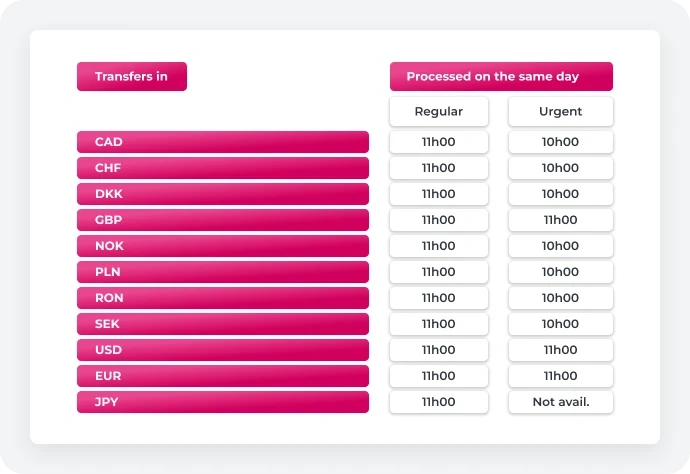
The MT101 transaction must be authorized by the first processing date for the records included in the file, according to the following table:
Service levels
The MT101 transaction must be authorized by the first processing date for the records included in the file, according to the following table:




 Looking for a branch?
 Need to call us?