Login with User Code
User Code: this code is required to access your account through the website or the Millennium App
I don't have or remember this code

Invalid access data

Fill in the user code

Or with Digital Mobile Key

How does it work? Gov.pt

Not a Customer yet?

Open an account online
Código de Utilizador This code is required to access your account through the website or the Millennium App

Scheduling operations

Schedule for later what you can't do now

With scheduling operations, you can schedule your payments for a future date, freeing you from worries

What can I schedule?

Schedule everything so you don't have to worry

What can I schedule?

Schedule everything so you don't have to worry

What can I schedule?

Schedule everything so you don't have to worry

You're 4 steps away from your schedule

It's simple. You just have to…

You're 4 steps away from your schedule

It's simple. You just have to…

Choose the operation
and fill your payment details

Select the ”Schedule” option
and choose if you want a one-time or permanent scheduling

Specify your payment details
and confirm the operation data

Finally, consult the appointments
in the "M Area", under "My schedulings"

Frequently asked questions

Questions? We'll help

In the "M Area", select the option "Scheduled events> My scheduled events".

In the "M Area", select the option "Scheduled events> My scheduled events".

To schedule a transfer you must:

  • Select the current account;
  • Select the option "Create a new transfer schedule",
  • Enter the following elements:
    • Destination account
    • Amount to be transferred on the scheduled date
    • Date on which the transfer will be processed
    • Descriptions for the source account and destination account

If the day specified for the transfer is not a working day, you may choose to carry it out on the previous or next business day.

Yes, you can change the amount or the date of the standing order by selecting the options "Area M">"Scheduled events > My scheduled events". Then select the standing order and click on "Edit" (blue square with a pencil).

Yes, you can change the amount or the date of the standing order by selecting the options "Area M">"Scheduled events > My scheduled events". Then select the standing order and click on "Edit" (blue square with a pencil).

To undo a permanent transfer you must:

  1. Select the current account of the transfer you want to change;
  2. Select the option "Consult, Change or Cancel permanent transfers".

If you want to change the transfer:

  1. In the transfer details, select the "Change" button;
  2. Select which data you want to change: name of the beneficiary, amount to be transferred periodically, and end date of the transfer (must be a working day).

Manage your account through the app

Explore app
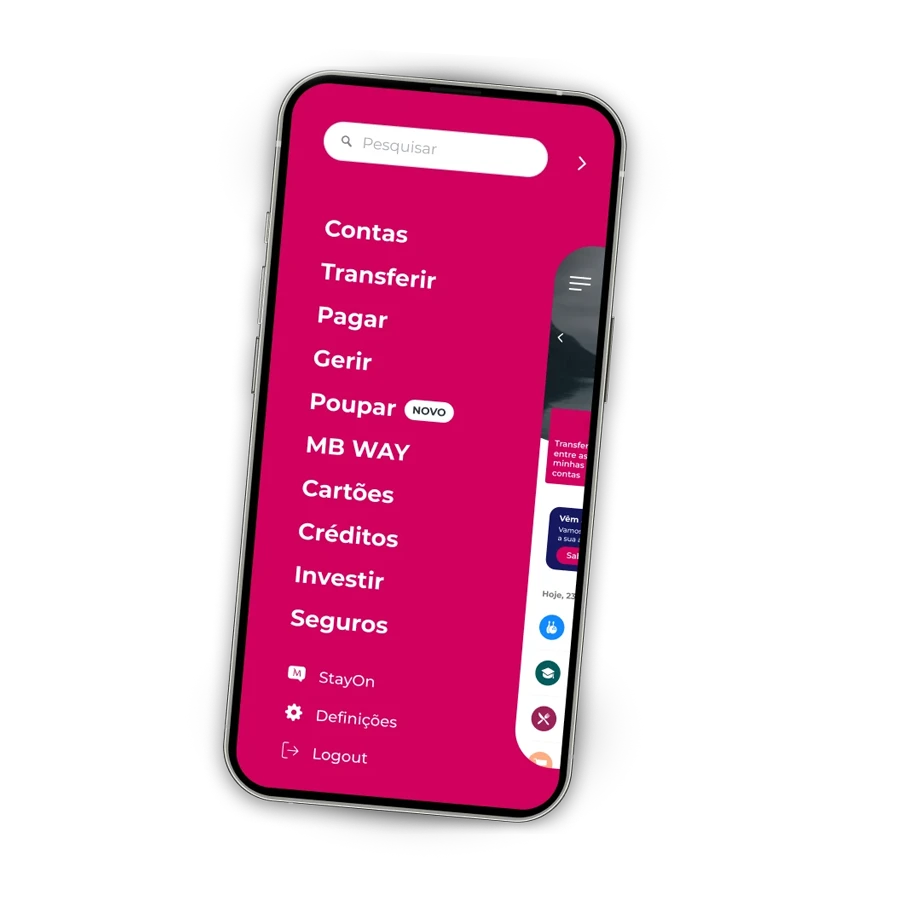
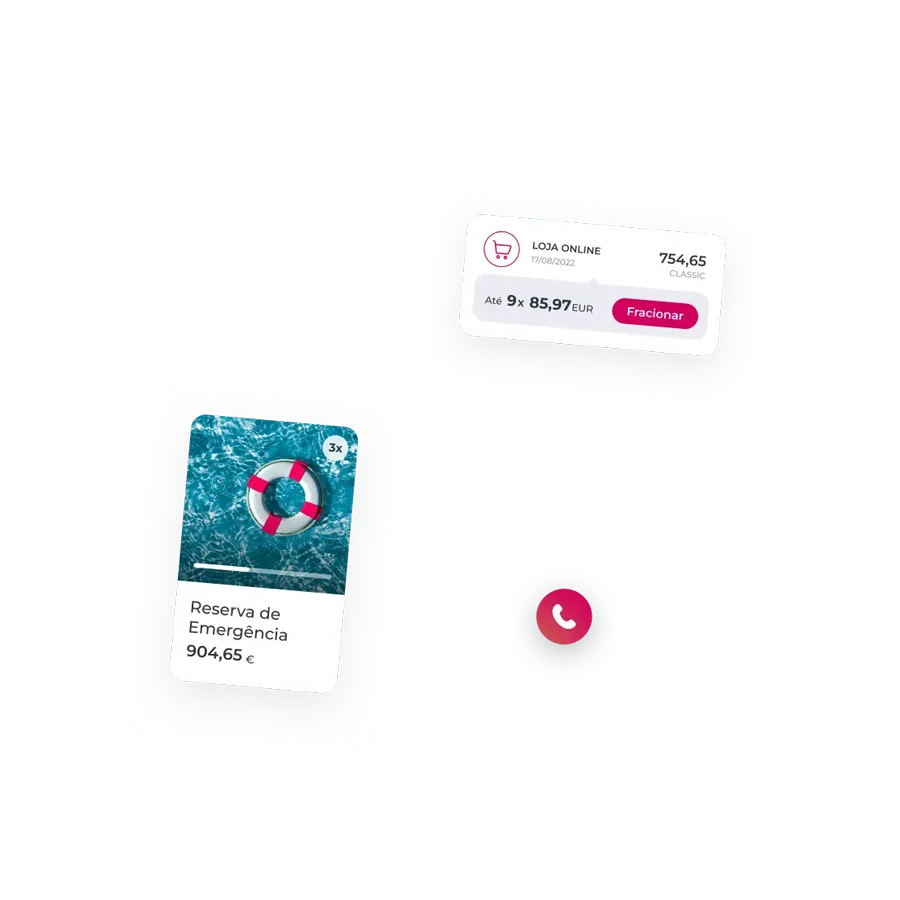
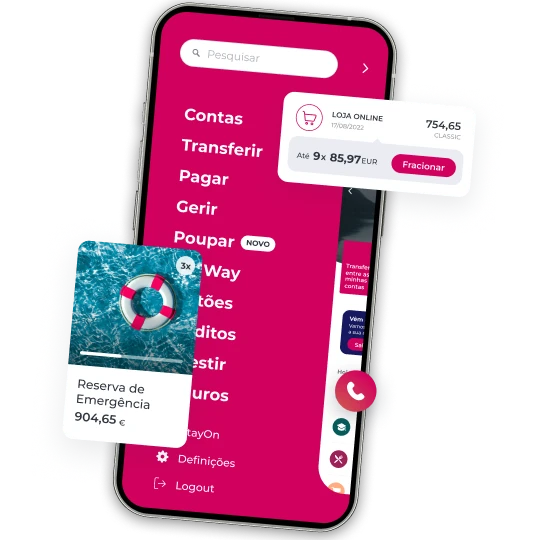
 Mobile phone displaying the menu of the Millennium app  illustrations of functions within the Millennium app
 Mobile phone displaying the menu of the Millennium app

Need help?

We are here for you

Need help?
Here you can find the answer to all your questions
Looking for a branch?
Find the nearest branch
Need to call us?
Call whenever you need to
Need help?
Here you can find the answer to all your questions
Looking for a branch?
Find the nearest branch
Need to call us?
Call whenever you need to